Create user and service accounts
Overview
This guide describes how to create new user or service accounts in the identity broker REALM.
Prerequisites
- Your domain has been onboarded to the identity broker
- You are the REALM manager
Create a new User Account
Info
Adding users manually is only needed, if no external identity provider is configured within the REALM.
Visit the REALM admin console at https://id.cloud-fc.de/admin/<realm-name>/console/. Fill the placeholder <realm-name> with your REALM name (equal to your domain name). Log in with your account and navigate to "Manage" -> "Users". Next, click on "Add user" and fill in the required information.
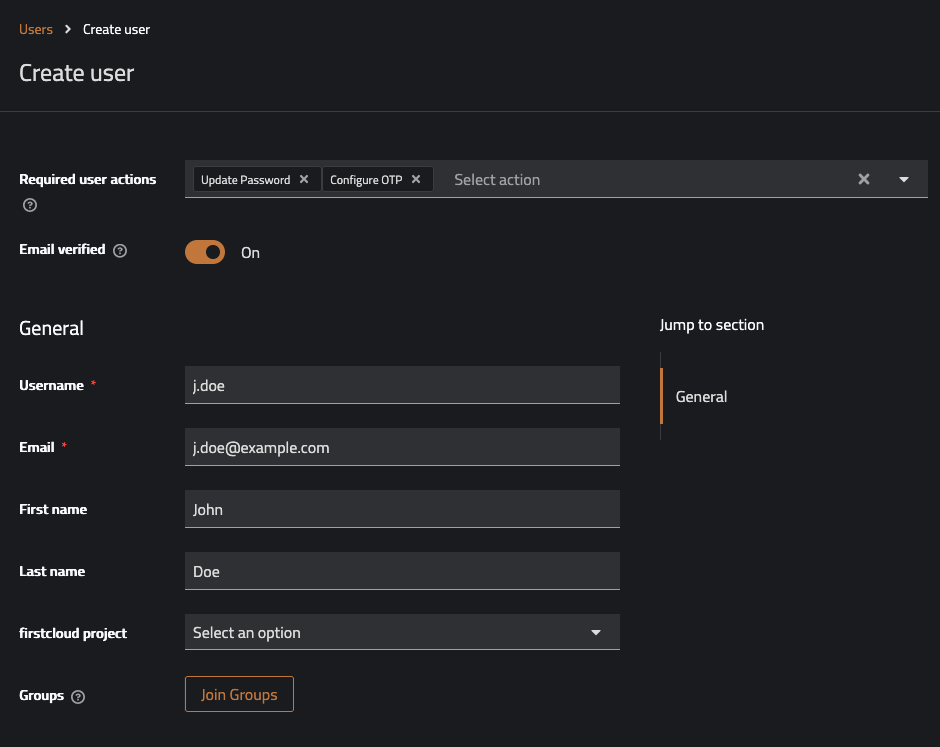
Make sure to check "Email verified" and do not set a "firstcloud project", as this field should only be used for service accounts. Note, that the e-Mail domain must be exclusively assigned to the REALM during onboarding, but the address does not need to be able to receive e-Mails.
We recommend to add "Update Password" and "Configure OTP" to the "Required user actions", so that the user is asked to set an individual password and setup OTP-based 2FA after logging in for the first time. Optionally, the user can be immediately added to groups, e.g. for granting access to firstcloud projects.
Next, click on "Create" and you get redirected to the newly created user object. Then navigate to the tab "Credentials".
If the user e-Mail address can receive e-Mails, the option "Credential Reset" can be used. Just, select "Update Password" and click "Send Email".
If the user e-Mail address can not receive e-Mails, the option "Set password" can be used. Generate a secure start password, paste it, click on "Save" and confirm with "Save password". Then send the password to the account holder via a secure channel. After logging in for the first time, the user will be prompted to set a new password.
Create a new Service Account
A service account can be created the same way as a user account, using the REALM admin console. After clicking "Add user", fill in the required information.
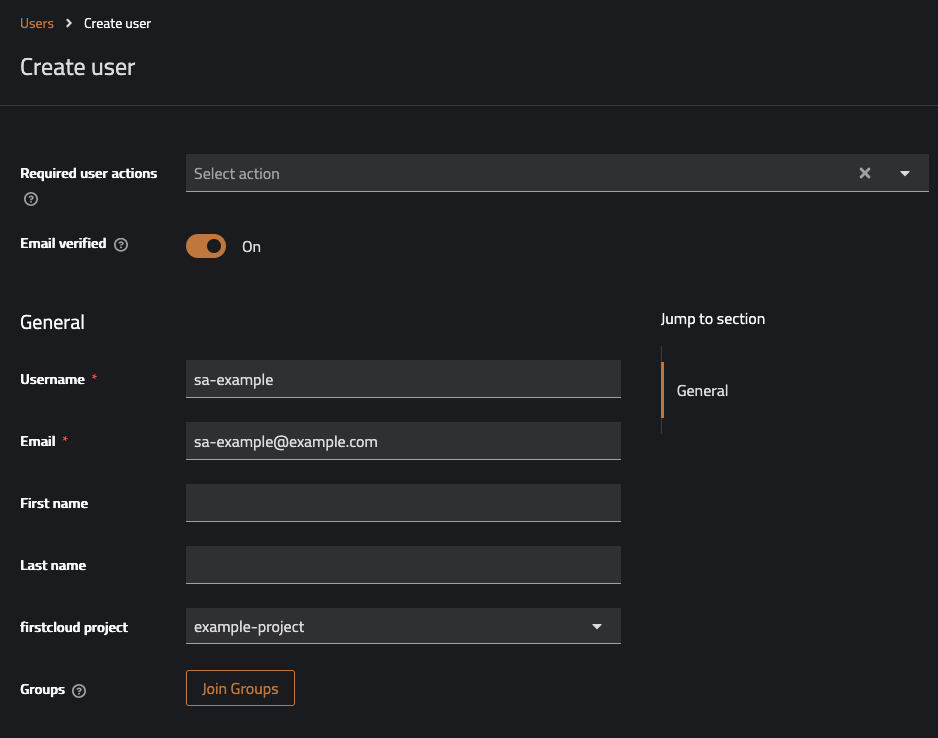
Make sure to check "Email verified" and do not set any "Required user actions". Note, that the e-Mail domain must be exclusively assigned to the REALM during onboarding, but the address does not need to be able to receive e-Mails. The address should start with the prefix sa- to clarify that this is a service account.
In the dropdown "firstcloud project" select the project the service account is created for. This must not be changed later on and can only be a single project.
Note, that service accounts must not be added to any project groups.
Next, click on "Create" and you get redirected to the newly created user object. Then navigate to the tab "Credentials". Select the option "Set password" and generate a secure password. After pasting it into the fields, uncheck "Temporary", so that it doesn't need to be changed after the first login. Finally, click on "Save" and confirm with "Save password".
The credentials can now be used to log in to firstcloud e.g. for creating application credentials.