Launching an instance with a GPU via Horizon (GUI)
Overview
This guide details how to instantiate a single compute instance with a GPU accelerator card using the firstcloud Horizon dashboard.
Prerequisites
- Valid firstcloud credentials (username, passphrase, and domain).
- Familiarity with terminal/SSH and SSH key management.
Launching an Instance with a GPU
Steps
-
Import SSH Keys:
- Upload your SSH key(s) to the Horizon dashboard. Refer to the importing SSH-keys guide.
-
Create Security Group for SSH Access:
- Create an SSH access security group. See the create security groups
-
Log In to firstcloud Dashboard:
- Access the firstcloud Dashboard using your provided credentials.
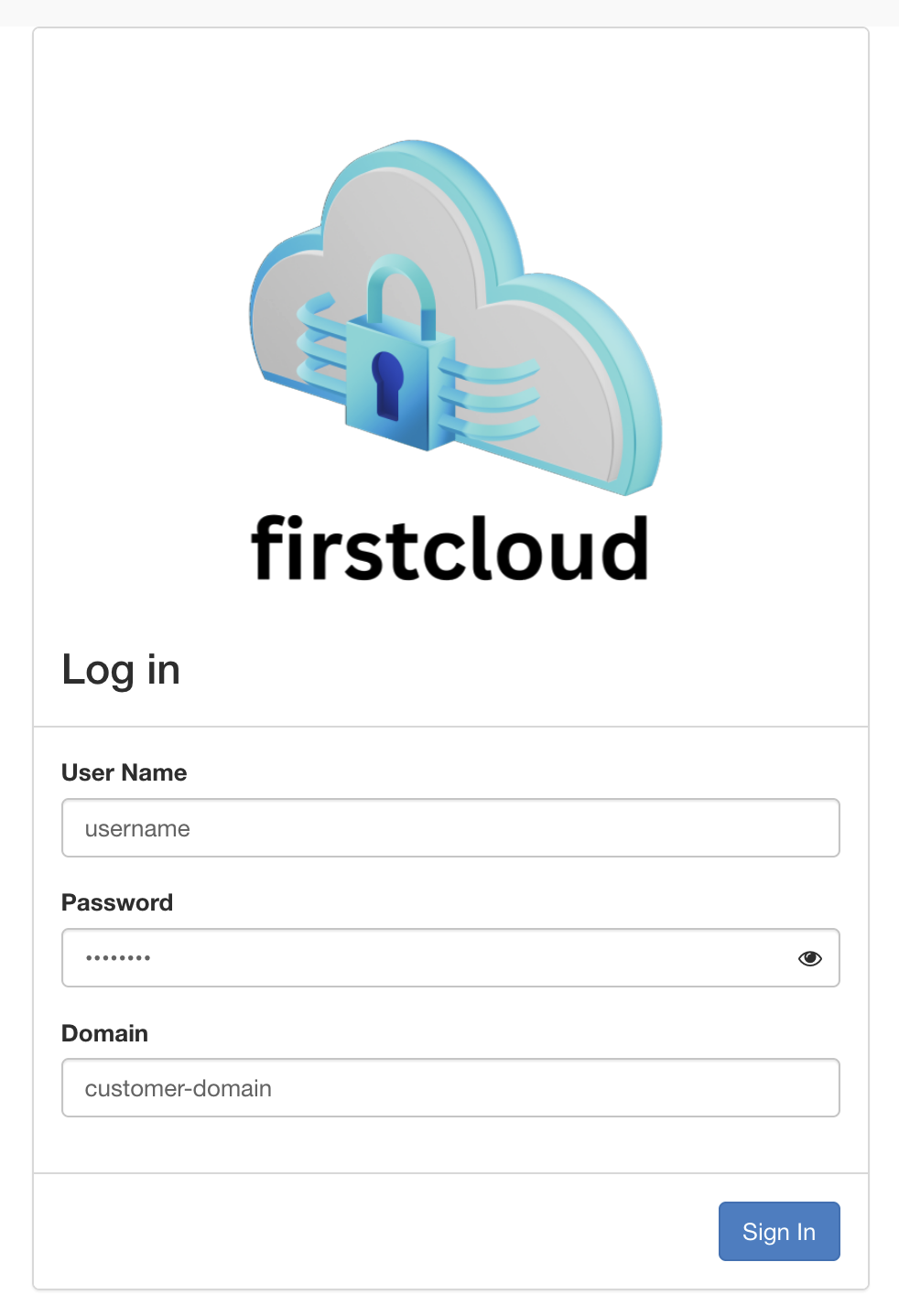
- Access the firstcloud Dashboard using your provided credentials.
-
Navigate to Instances:
- Go to "Project" > "Instances."
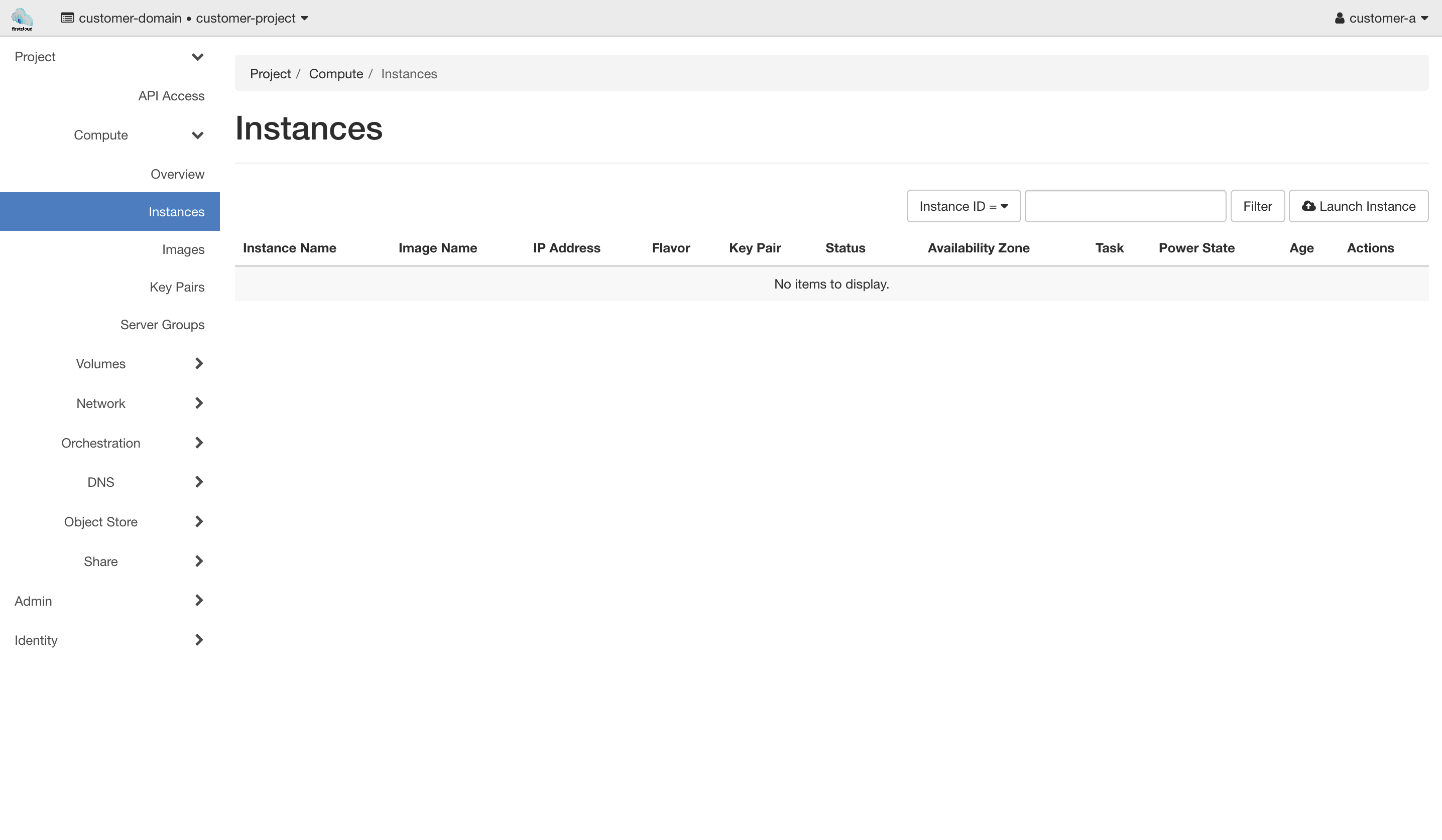
- Go to "Project" > "Instances."
-
Launch Instance:
- Click "Launch Instance."
- Enter an "Instance Name."
- Click "Next."
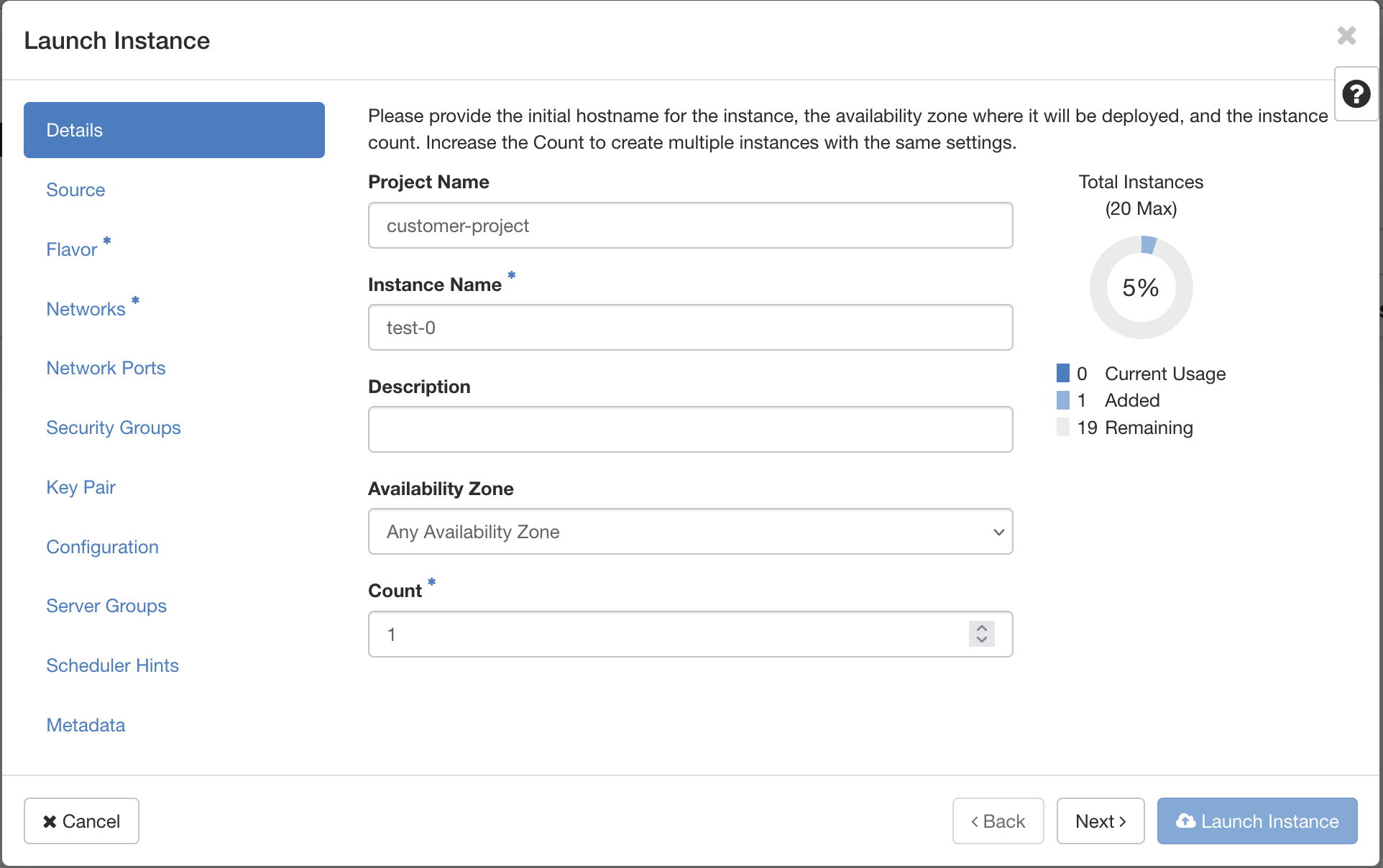
-
Configure Boot Source:
- Select a boot source and enable "Create New Volume."
- Set the volume size.
- Choose a source image.
- Click "Next."

-
Select Flavor:
- Choose a GPU flavor. Current GPU Flavors are: gpu1.xlarge, gpu1.xxlarge and gpu1.3xlarge.
- Click "Next."

-
Configure Security Groups:
- Select the "default" and "ssh" security groups.
- Click "Next."
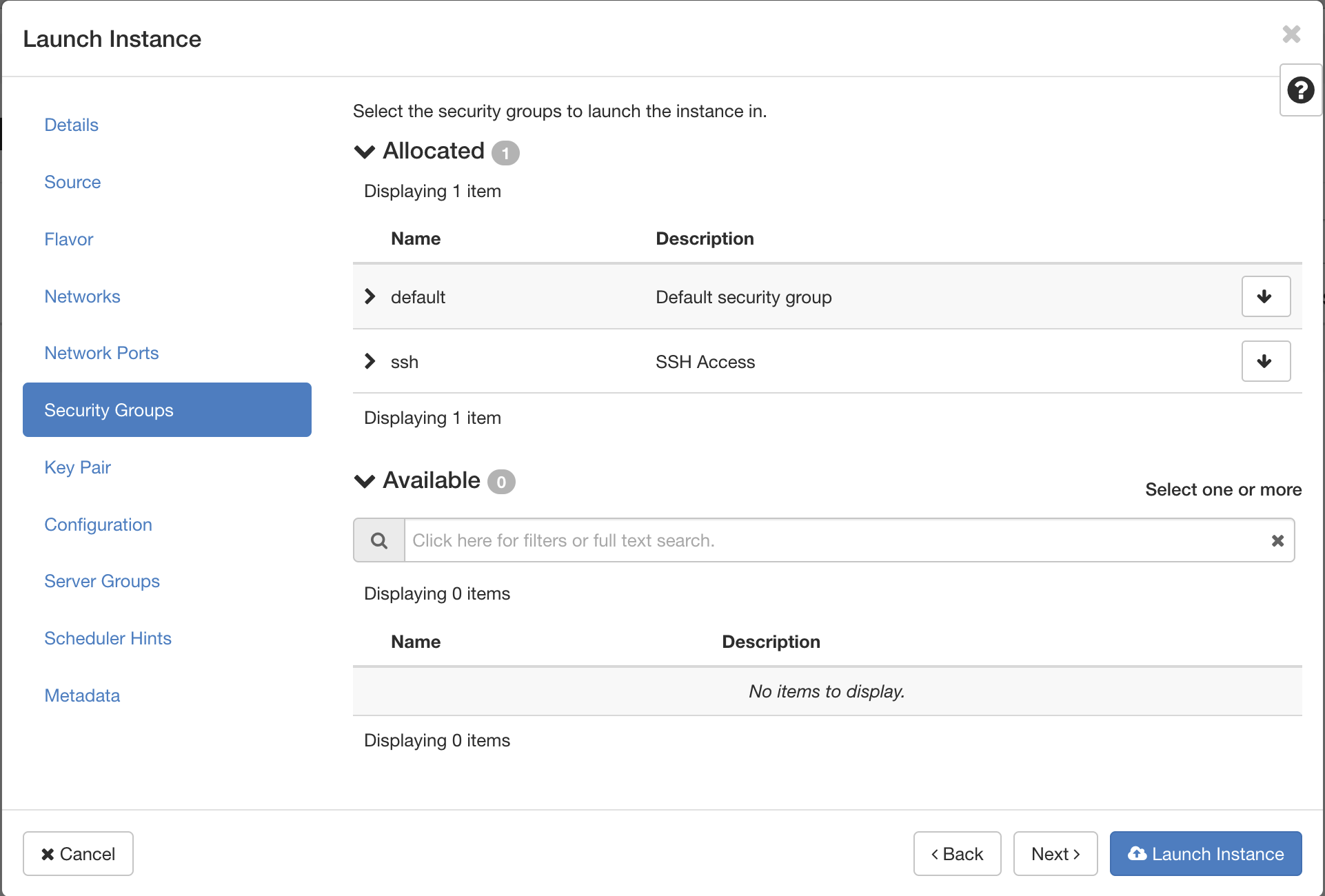
-
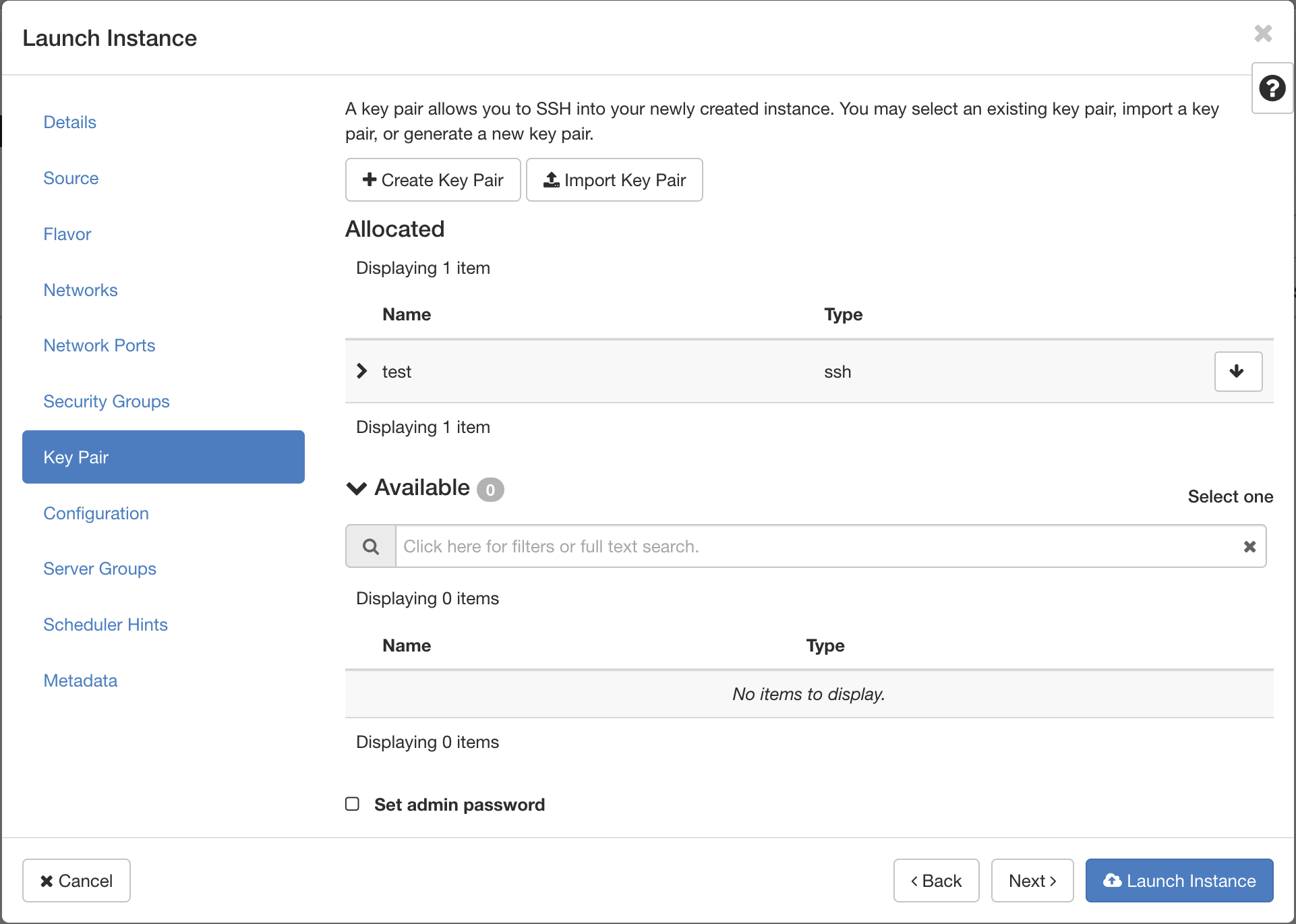
Select Key Pair:
- Choose your SSH key pair.
- Click "Launch Instance."
-
Monitor Instance Provisioning:
- Observe the instance status in the instance list.

- Observe the instance status in the instance list.
-
Access Console (Optional):
- Click on the instance and go to the "Console" tab to view console output.

- Click on the instance and go to the "Console" tab to view console output.
-
Connect via SSH:
- After associating a floating IP, open a terminal and connect using:
ssh debian@<public IP> -i ~/.ssh/<private SSH key> - (Replace
<public IP>and<private SSH key>with your values.)
- After associating a floating IP, open a terminal and connect using:
-
Install Nvidia Drivers:
- Installing the Nvidia Drivers:
apt update apt install ubuntu-drivers-common apt install nvidia-driver-<version> reboot nvidia-smi - Replace
<version>with your desired Nvidia Driver version. To get a list of available versions useapt search nvidia-driver - After the reboot, the GPU should be visible by running
nvidia-smi - You can also install the open drivers instead of the proprietary drivers with
apt install nvidia-driver-<version>-open
- Installing the Nvidia Drivers:
Conclusion
We have successfully created an Ubuntu Instance with a GPU accelerator Card.